
Somewhere in your building there’s probably a box that everyone depends on and nobody loves. It holds twenty years of documents, it’s out of warranty, the backups take longer every month, and the person who set it up left in 2019. The file server: the last machine standing in many otherwise-modern businesses.
We retired another one this weekend. All of its shares are now served from Azure, the old hardware is switched off, and when everyone logged in on Monday morning their drives, paths and files were exactly where they’d always been. Most of the team will never know it happened.
That’s not luck. It’s a repeatable pattern, and the clever bit at the middle of it is a Windows feature that’s been hiding in plain sight for twenty years. Here’s how it works.
What replaces the file server?
Azure Files, in most cases: proper SMB file shares served from Microsoft’s cloud. To your team it looks and behaves like the share they’ve always used, mapped drives and all. Underneath, it’s rather better than the old box:
- No hardware to buy, refresh or fix. The 3am disk-array phone call is retired along with the server.
- Snapshots and soft delete. Point-in-time copies protect against ransomware and accidental deletion, without babysitting backup tapes.
- Your Microsoft 365 identity. Access is controlled with the same accounts and groups you already manage, and with the right setup users authenticate seamlessly, in the office or out of it, with no VPN required.
- Pay for what you store, not for the size of the box you guessed you’d need five years ago.
For most estates that’s the destination. Where an application is unusually latency-sensitive or data genuinely has to stay in the building, there are good on-site answers too (that’s Azure Local territory), and Azure File Sync can keep a local cache while the data lives in the cloud. The right answer comes from the assessment, not the brochure.
The clever bit: DFS Namespaces
The reason file server migrations have a scary reputation is not the data.
Copying data is easy. The fear is everything that points at the data:
hundreds of mapped drives, Group Policy preferences, desktop shortcuts,
spreadsheet links and line-of-business apps, all hard-coded to
\\SERVER01\data. Miss one and someone’s Monday breaks.
DFS Namespaces solves this, and it’s been built into Windows Server since
the 2000s. Instead of pointing everyone at a physical server name, you give
them a stable, friendly path such as \\yourcompany\files. That path is a
signpost. Behind it, a folder target quietly says where the data really lives.
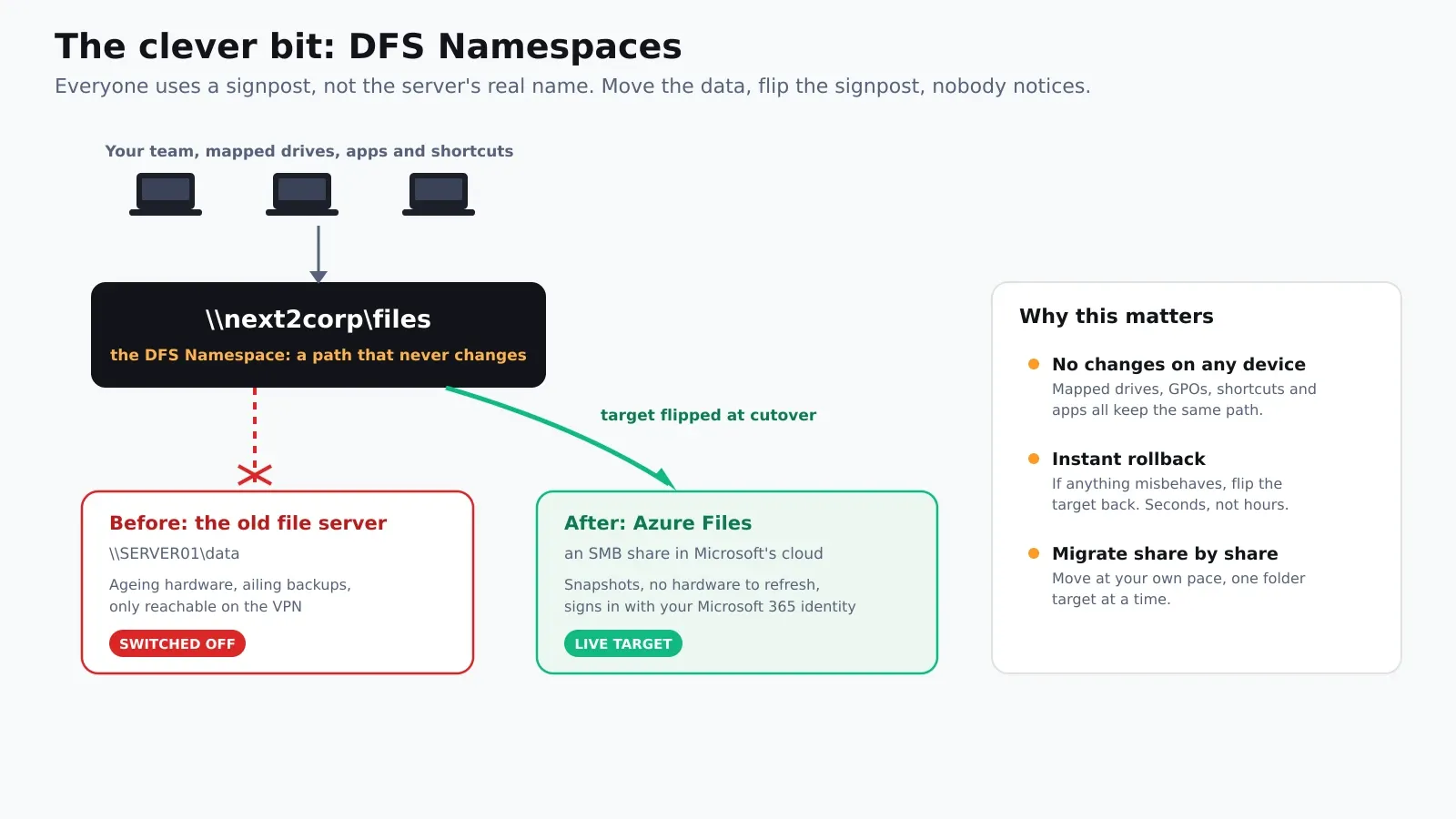
That indirection changes everything about the migration:
- Nothing on any device needs touching. The path everyone uses stays identical; only the signpost’s destination changes.
- Rollback is instant. If something misbehaves after cutover, flip the target back to the old server. Seconds, not a weekend of restores.
- You can move share by share. Finance this weekend, operations next month. Each folder target flips independently, so the migration goes at the pace of your business rather than one terrifying big bang.
If your estate already uses DFS paths, you’re halfway there and may not know it. If it doesn’t, putting the namespace in before the migration is the single smartest preparatory step: once everyone is on the signpost, the actual move becomes an anticlimax. Being clever with DFS Namespaces is the difference between a migration project and a non-event.
Anatomy of a cutover nobody notices
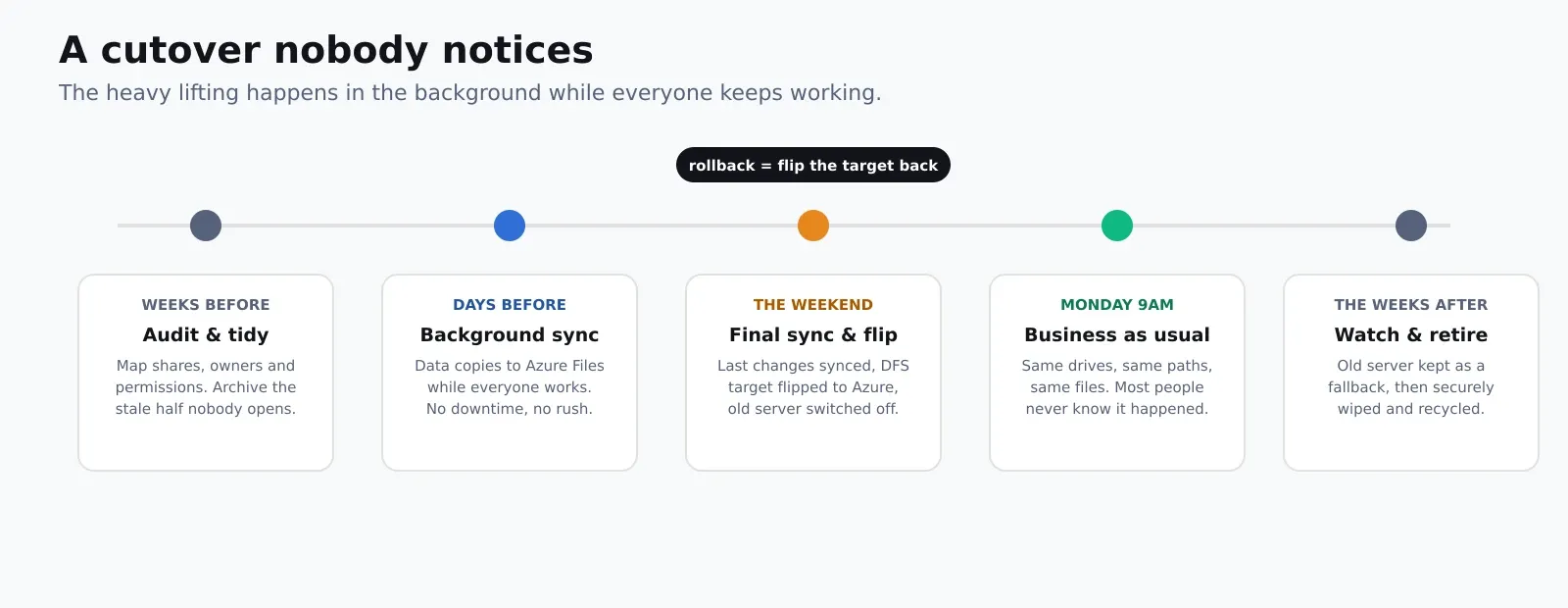
The pattern we run, honed across many of these:
- Audit and tidy first. Map every share, owner and permission, and be honest about the stale half nobody has opened since 2017. Archiving it before the move cuts cost and copies less risk into the new world.
- Sync in the background. The data copies to Azure Files over days while everyone keeps working. No downtime, no deadline pressure, and plenty of time to validate permissions on the far side.
- Final sync and flip. Out of hours, the last changes sync across, the DFS folder target flips to Azure, and the old server is switched off but kept intact.
- Monday, business as usual. Same drives, same paths, same files. The help desk’s phone stays quiet.
- Watch, then retire. The old box stays available as a fallback for a few weeks, then gets securely wiped and recycled.
We run these cutovers out of hours because our engineers work around the clock anyway; a weekend flip is a normal shift for a team with a 24×7 operations centre, not overtime heroics.
What it means in pounds and pence
The financial case usually writes itself: a file server refresh (hardware, Windows licences, backup infrastructure, the engineering time to build it) is a five-figure lump every few years, before you count the electricity and the risk. Azure Files replaces that with a monthly per-gigabyte cost that starts shrinking the moment you archive the stale data you’ve been dutifully backing up for a decade. We’ve covered how to compare the options properly in our cloud versus on-premises cost guide, calculator included.
How Next2IT can help
We’ve done this enough times that the surprises have stopped being surprising: the app with a hard-coded UNC path, the permissions that only worked by accident, the “quick” share that turned out to hold the payroll archive. Our job is meeting those before they meet you.
- Assessment: what you have, what’s stale, what the right destination is for each share, and what it will cost, before anything moves.
- Preparation: namespace design (or tidy-up), identity and permissions work in Azure, and archiving that shrinks the job.
- The migration itself: background sync, out-of-hours cutover, DFS flip and a tested rollback path, run by engineers who do this routinely.
- Afterwards: monitoring, snapshots and support as part of a managed cloud service, so the new estate stays healthy.
If your file server is on borrowed time, talk to us before the next hardware quote lands. Retiring it is almost certainly easier, and cheaper, than replacing it.